Easily improve your online security by updating to a stronger password with Uniqkey. Use Uniqkey to generate and save a new password in just a few steps.
Step 1. Open the Website
Navigate to the website where you want to update your password. In this guide we'll be using Github.com as an example, do note that accessing the settings page can vary depending on the desired website.
Step 2. Go to the Settings Menu
Open the Settings menu on given website.
Select Password and authentication.
Note: The menu layout may vary depending on the website.
Step 3. Generate a New Password.
Click the Uniqkey icon next to the first login field, then approve the action in your Uniqkey mobile app to autofill your current password.
Click the Uniqkey icon next to the new password field, this will automatically prompt the Password Generator. This will generate a secure and complex password based off your preferences - the more complex the better! You have the option to include/exclude parameters such as Letters, Numbers, Symbols and the length of the generated password. Once satisfied with the given password strength, press 'Fill the form'.
Once the new password is filled in, click Save Password on the website to complete the update.
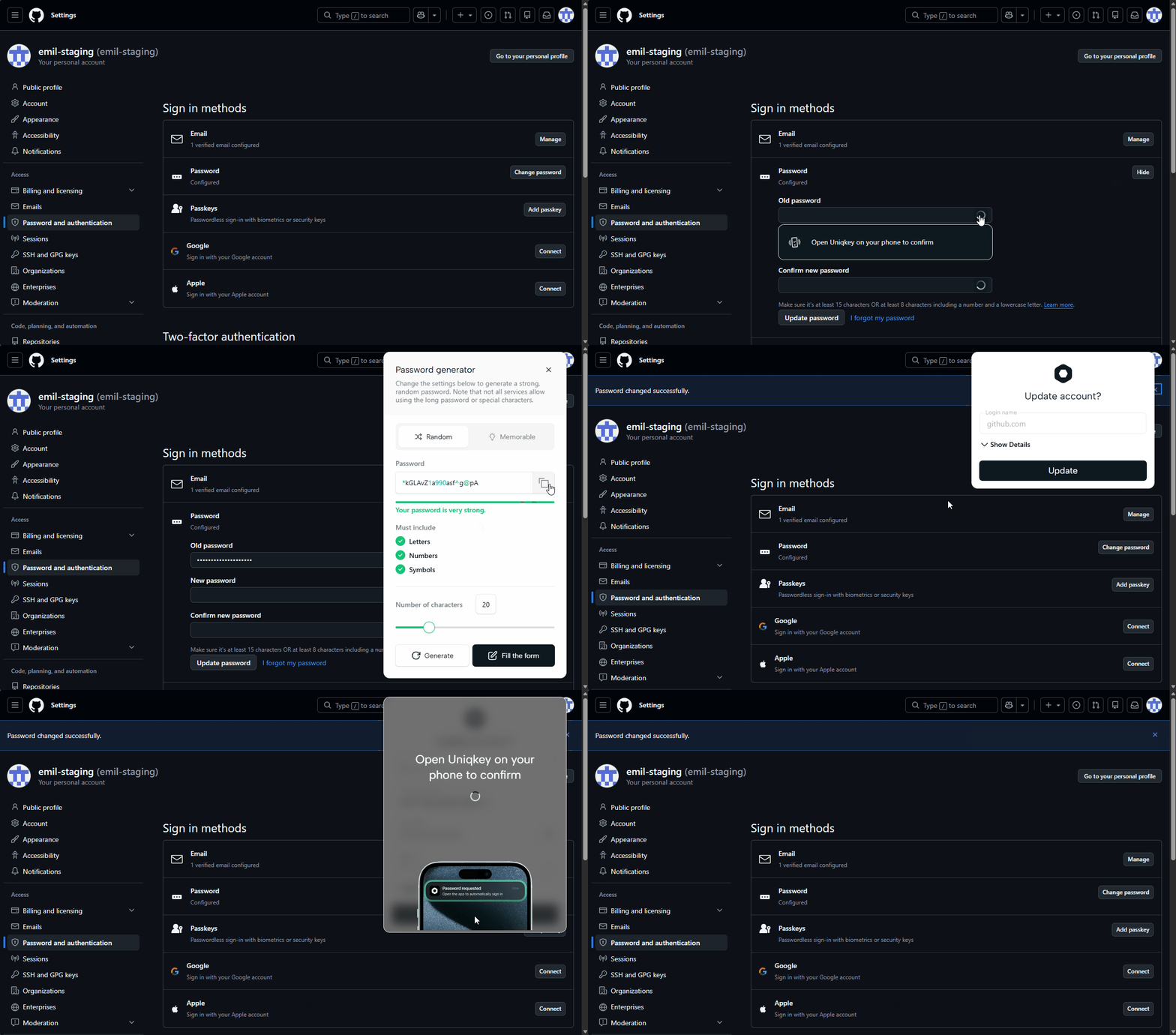
Step 4. Approve the Uniqkey Update Prompt
Uniqkey will now notice the password change and prompt you with the window shown below. Just press 'Save' and your password will now be updated within the system.